
Medidate works in three connected ways: a web dashboard for owners and staff, a client app for students, and public pages that let people book and pay without downloading anything.
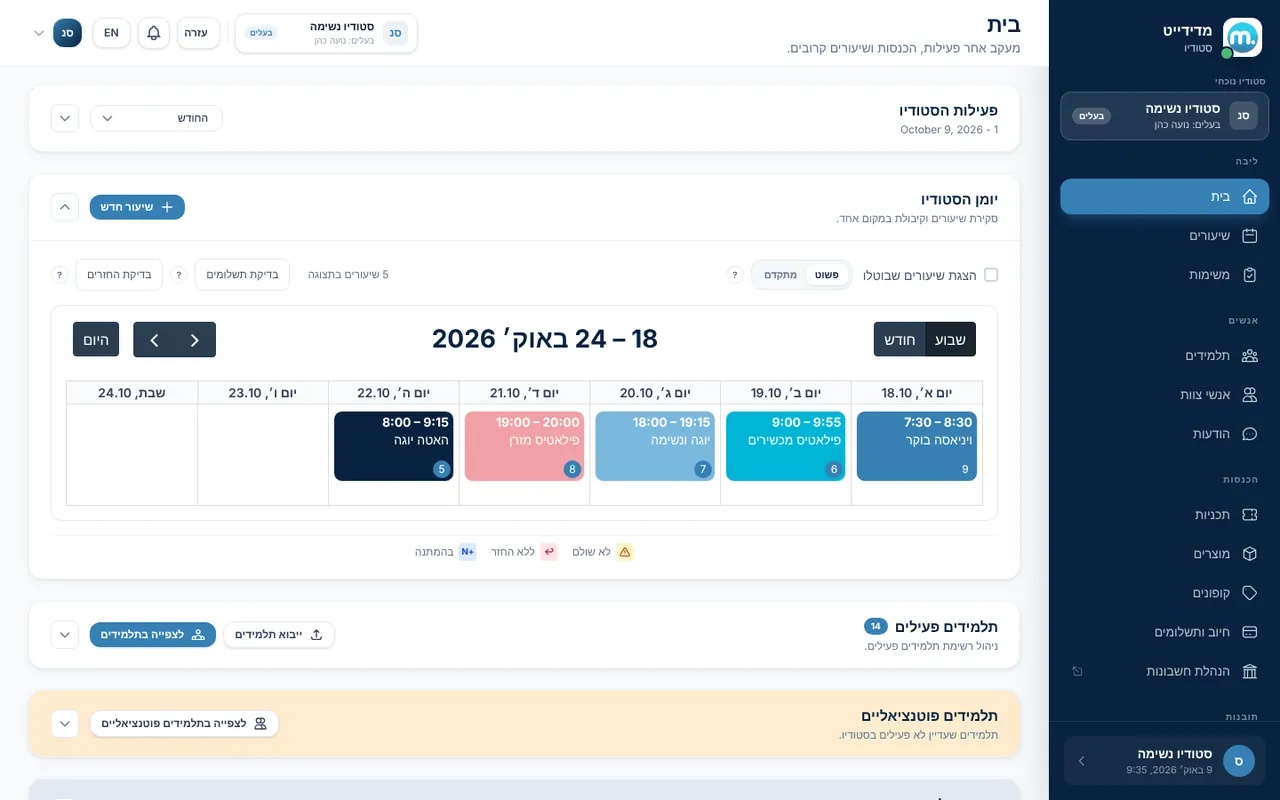
Step by step
- The web dashboardGo to admin.medidatewith.me from any computer. The sidebar has five areas: Core (Home, Sessions, Tasks), People (Students, Staff, Messages), Revenue (Plans, Products, Coupons, Billing, Book Keeping), Insights (Insights, Reports) and Settings.
- The client appStudents download the Medidate app (Android and iOS), choose your studio, see your schedule, book and cancel, join waiting lists, buy memberships, punch cards and products, and chat with the studio.
- Booking and paying without an appEvery class has a "Class registration link" you can share on WhatsApp or social media. Settings also give you a "Student registration link" and a "Lead registration link", and each plan can have an "External payment link".
- The schedule widget for your websiteIn Studio Settings, under "Schedule widget", choose a calendar or list view, a style and a language, and decide whether people can book through it. You get a direct link and an embed code for your website.
Key settings and options
- Display: calendar or list
- Style: simple or advanced
- Show the studio name and logo
- Allow registration through the schedule
Tips
- lightbulbYour whole staff can work at the same time, and every change updates instantly for staff and students.
- lightbulbThe public page of a private class shows it as not available, so private classes are never exposed by accident.
Screen names in these guides use the "Studio" business type. For other business types the system adapts its wording, for example "patient" and "treatment" for a clinic, or "trainee" and "training" for a sports club.
Updated for the current version of the system: October 2026