
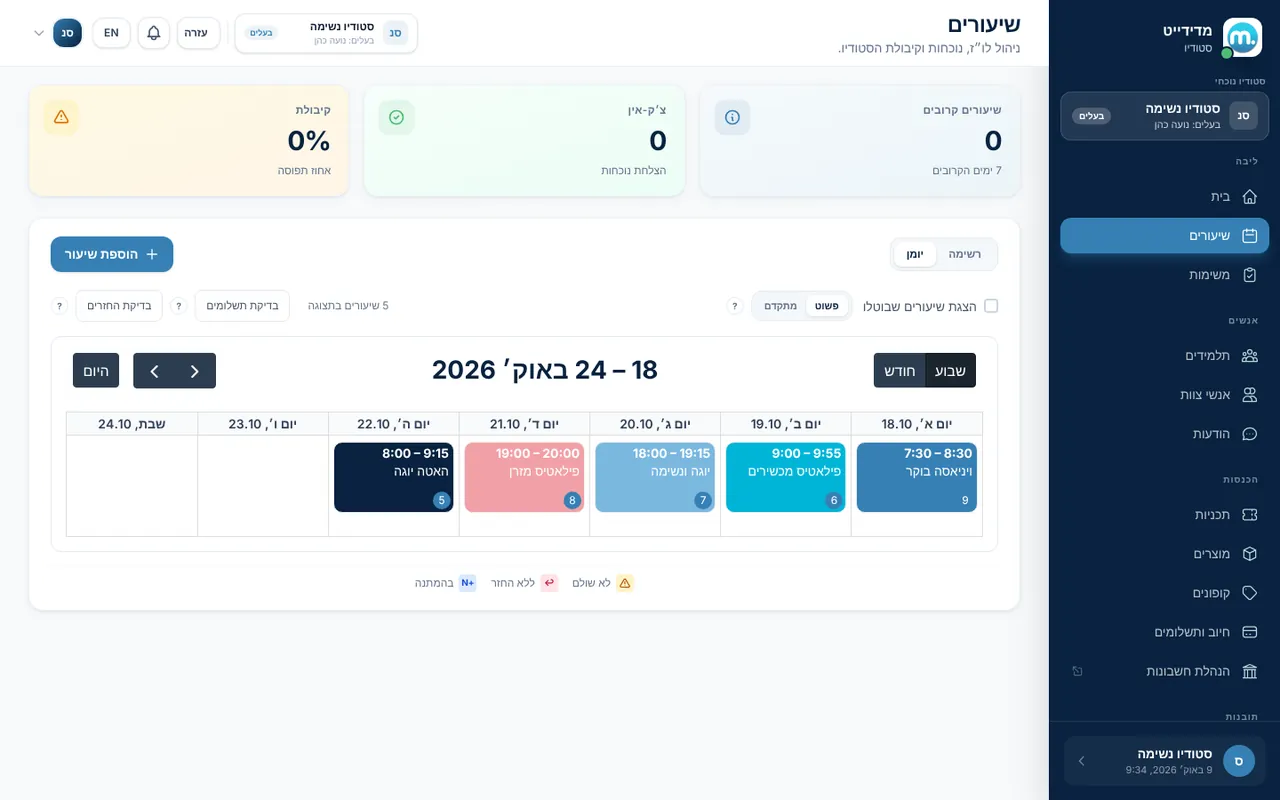
Medidate's schedule is made of sessions, one-off or recurring. You create them on the "Sessions" page, and for each one set the time, capacity, teacher, price and which memberships and punch cards it accepts.
Step by step
- New sessionOn the "Sessions" page (list or calendar view) click "Add session".
- Session detailsTitle, description, image and address, start time and end time.
- RepetitionChoose "No repeat", "Weekly" or "Monthly", and the days of the week. Recurring sessions are created several weeks ahead.
- Capacity and teacherSet the capacity and the session teacher. When a class fills up, students can join the waiting list.
- Price and plansFree or paid session, "Allow drop-ins" for single entries, and a "Trial price" for new clients (0 for a free trial class). Under "Associated plans" choose which memberships and punch cards are accepted.
- Advanced optionsPrivate session (restricted access), online session with a link and password, minimum attendees required, a session-specific policy and session coupons.
Key settings and options
- Repetition: no repeat, weekly, monthly
- Capacity and waiting list
- Paid or free, and trial price
- Allow drop-ins
- Private or online session
- Minimum attendees required
- Class registration link
Tips
- lightbulbWhen you edit a recurring session, the system asks whether to save this session only or all future sessions.
- lightbulbNew recurring sessions can take a few minutes to appear on the calendar.
- lightbulb"Duplicate session" saves time when you open a similar class at another hour.
Screen names in these guides use the "Studio" business type. For other business types the system adapts its wording, for example "patient" and "treatment" for a clinic, or "trainee" and "training" for a sports club.
Updated for the current version of the system: October 2026