
A student's profile page gathers everything you need to know about them: details, notes and health, the classes they attended, their plans and products, and the actions you can take.
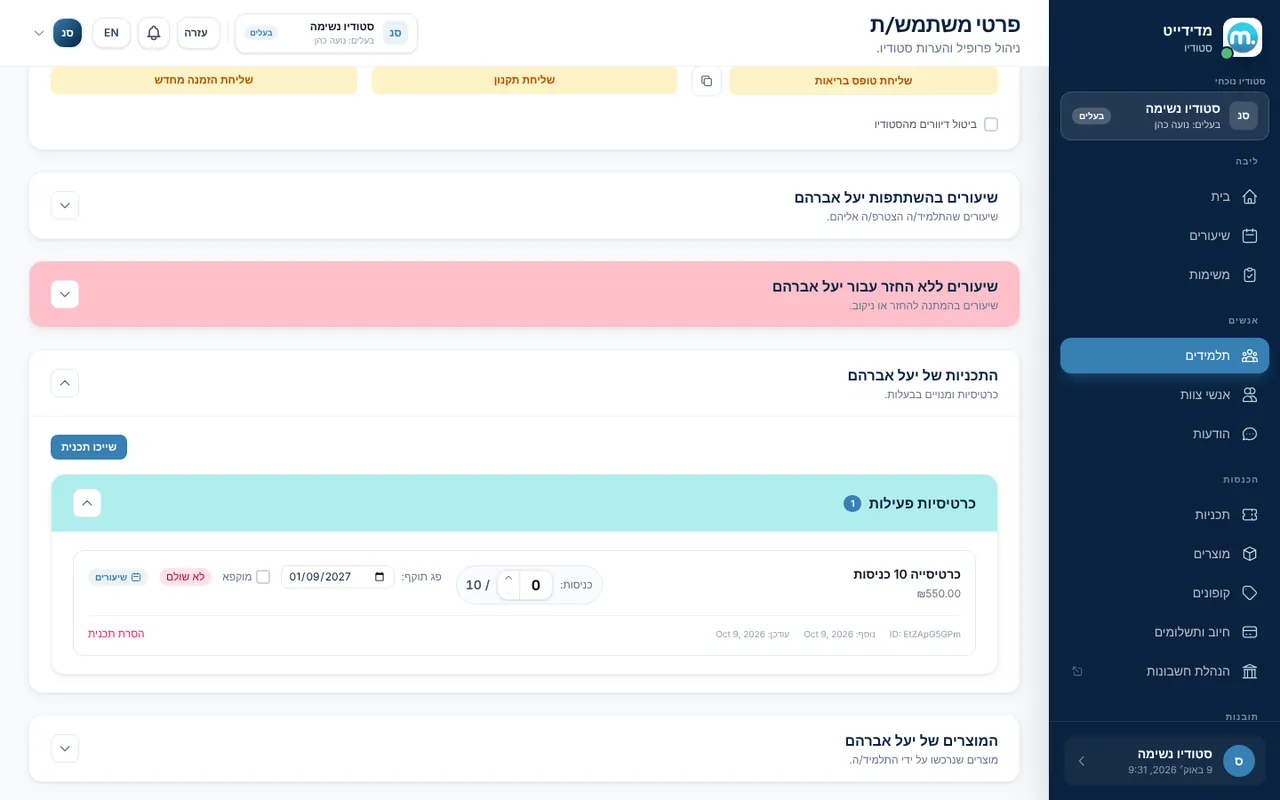
Step by step
- Open the profileOn the "Students" page click the student's name to open their profile.
- Details and notesName, email, phone, birth date and city, internal staff notes, health notes, and whether the trial class was already used.
- FormsView the signed health declaration and terms, or send them for signature. This is also where you resend the app invite.
- ClassesThe classes the student attended and classes not yet refunded.
- The student's plansActive, frozen and expired punch cards and memberships, "Assign plan" to add one, "Sessions Usage" with a refund per class, "Send payment request" and cancelling an installment subscription.
- The student's productsThe products the student bought.
Key settings and options
- Notes and health notes
- Health declaration and terms
- Trial session already used
- Unsubscribe from studio emails
- Assign plan
- Freeze membership
Tips
- lightbulbHealth notes are available to staff before class and save repeated questions.
- lightbulbA student who opted out of emails is marked "Unsubscribe from studio emails". Respect it.
Screen names in these guides use the "Studio" business type. For other business types the system adapts its wording, for example "patient" and "treatment" for a clinic, or "trainee" and "training" for a sports club.
Updated for the current version of the system: October 2026