
You manage students on the "Students" page: add one student, import a whole list from a file, search and filter, and remove a student without losing their history.
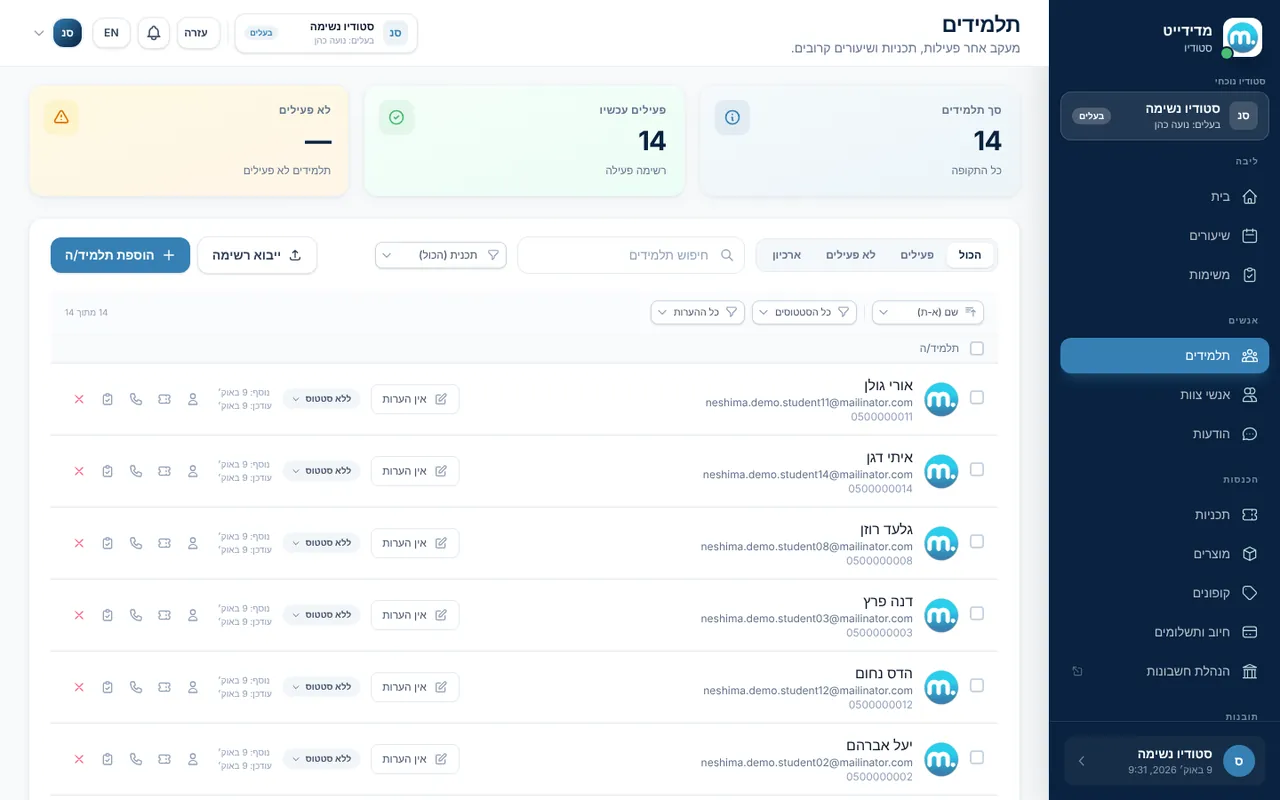
Step by step
- Add one studentClick "Add student", fill in first name, last name, email and phone, and save. If email invites are on in Settings, the student gets an invite to the app.
- Import a listClick "Import list", then "Download template". Fill in first name, last name, email and phone, and upload it with "Upload file" (CSV or XLSX).
- Preview and importThe system shows an "Import Preview" with valid rows, warnings and errors. Fix anything needed and import. A student who already exists in Medidate is linked, not duplicated.
- Search and filterSearch by name, email or phone, and filter by active or inactive students and by whether they have an active plan.
- Remove a student"Make not active" moves the student to "Potential Students". "Move to the archive" removes them from your lists without deleting any data, and you can restore them at any time.
Key settings and options
- Add student
- Import list from the Excel template
- Filter active and inactive
- Filter by active plan
- Make not active
- Move to the archive and restore
Tips
- lightbulbBefore a big import, try a file with two or three rows to check that the columns line up.
- lightbulbPotential Students double as your lead list. They are worth following up with an offer.
Screen names in these guides use the "Studio" business type. For other business types the system adapts its wording, for example "patient" and "treatment" for a clinic, or "trainee" and "training" for a sports club.
Updated for the current version of the system: October 2026