
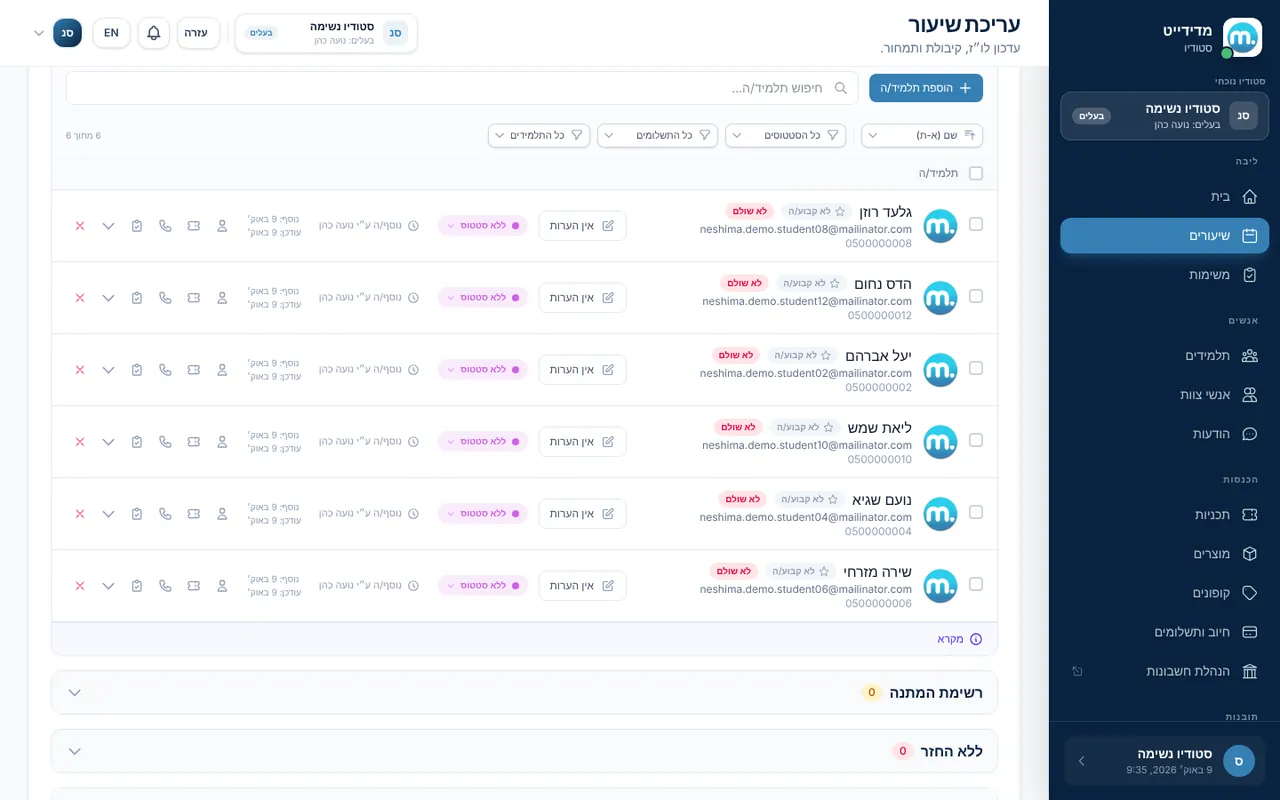
Every Medidate session has a "Students in session" panel: who is booked, who is on the waiting list, who arrived and who paid. From there you book students, take attendance and handle payments and cancellations.
Step by step
- Open the sessionOn the "Sessions" page click the session and open "Students in session", with attendees, the waiting list and attendance tracking.
- Book a student"Add to class" or "Add to waiting list", searching by name or email. You can create a new student straight from the search.
- Take attendanceMark each student as arrived, did not arrive, or cancelled with or without a refund. You can also send an attendance report.
- Handle payment"Handle payment" lets you "Use Entry" from a punch card or membership, mark as paid (cash, check, bank transfer, Bit or other), take a partial payment, apply a trial session, or send a payment request.
- CancellationsRemoving a student inside the cancellation window asks whether to remove with or without a refund. When self-refund is off, a student who sends a "cancellation request" shows as requesting to cancel, and you get an email and a notification.
- Frequent students"Mark as frequent" flags a student who comes to a class regularly. With auto-sign for recurring sessions, they are booked and punched in advance.
Key settings and options
- Attendees and waiting list
- Attendance tracking
- Use entry
- Mark as paid
- Cancellation requests
- Mark as frequent
- Move to another class
Tips
- lightbulbWhen a spot opens, people on the waiting list are notified and can take it. You can also move a student yourself.
- lightbulbTeachers need the permission to view who is booked in order to see the attendee list.
Screen names in these guides use the "Studio" business type. For other business types the system adapts its wording, for example "patient" and "treatment" for a clinic, or "trainee" and "training" for a sports club.
Updated for the current version of the system: October 2026