
Moving a running studio to Medidate takes five steps: import your students, assign each one their current plan, send payment requests for renewing memberships, invite your staff, and invite your students to the app.
Step by step
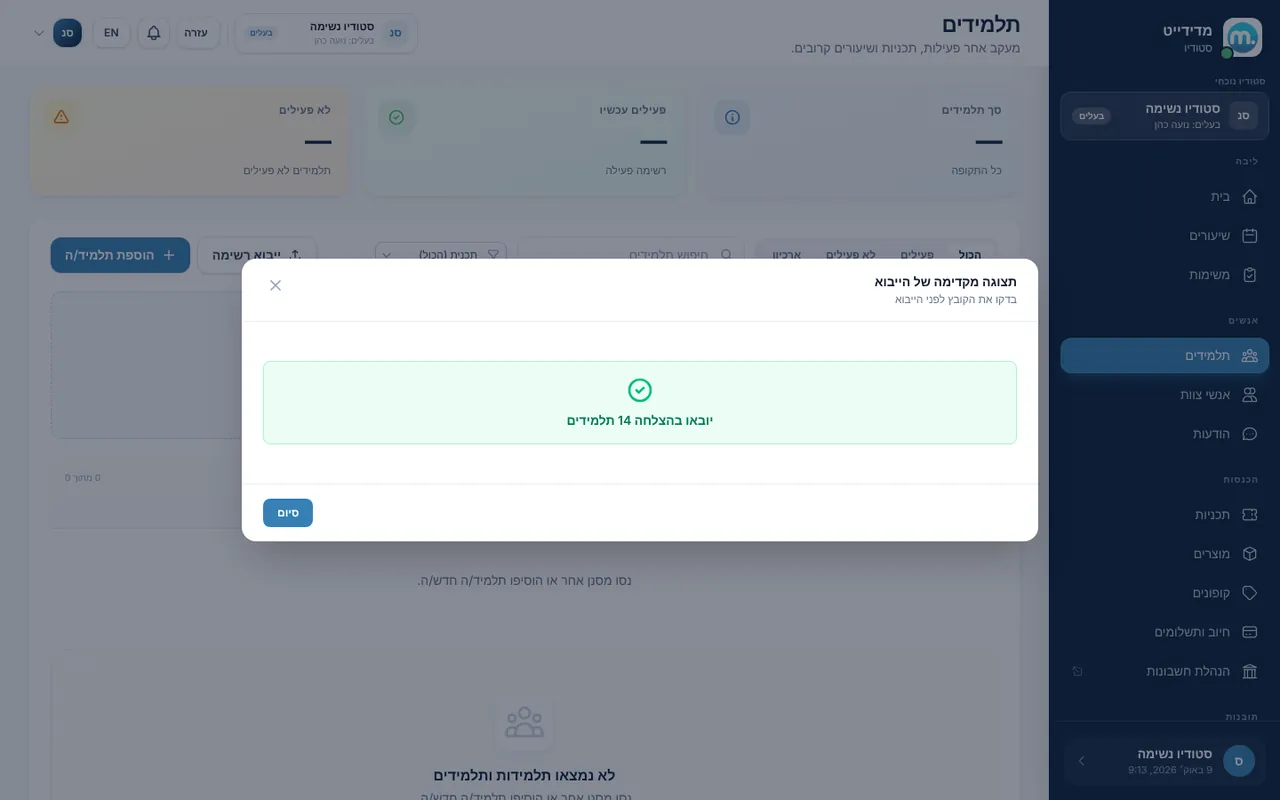
- Import studentsImport your student list from the Excel template, as in the "Add, find and remove students" guide.
- Update plansFor each student, "Assign plan" with the plan they have today, and adjust entries and expiry to match where they are now.
- Renewing membershipsFor students paying a monthly membership by standing order, send a "payment request", to several students at once if you like, so they join automatic billing.
- Invite staffTurn on "Team management" in Settings, then on "Staff" click to invite a user with name, email, phone and role: Teacher, Manager, Reception, Assistant or Administrator. Access comes from the default teacher permissions and per-person overrides.
- Invite studentsMake sure "Send email invites to students" is on, or resend an invite from the student's page. Students download the app, sign in and see your schedule.
Key settings and options
- Import students
- Assign plan
- Send payment request
- Team management
- Default teacher permissions
- Send email invites to students
Tips
- lightbulbThe one-hour Zoom onboarding session is included. Book it before your first day with students.
- lightbulbThe role name is just a label. Permissions decide what each staff member can see and do.
- lightbulbA teacher assigned to upcoming classes can't be removed. Move those classes to another teacher first.
Screen names in these guides use the "Studio" business type. For other business types the system adapts its wording, for example "patient" and "treatment" for a clinic, or "trainee" and "training" for a sports club.
Updated for the current version of the system: October 2026