
Once your plans exist, managing students' plans means assigning, renewing, freezing and following payments. Most actions happen on the student's page or under "Manage students" on the Plans page.
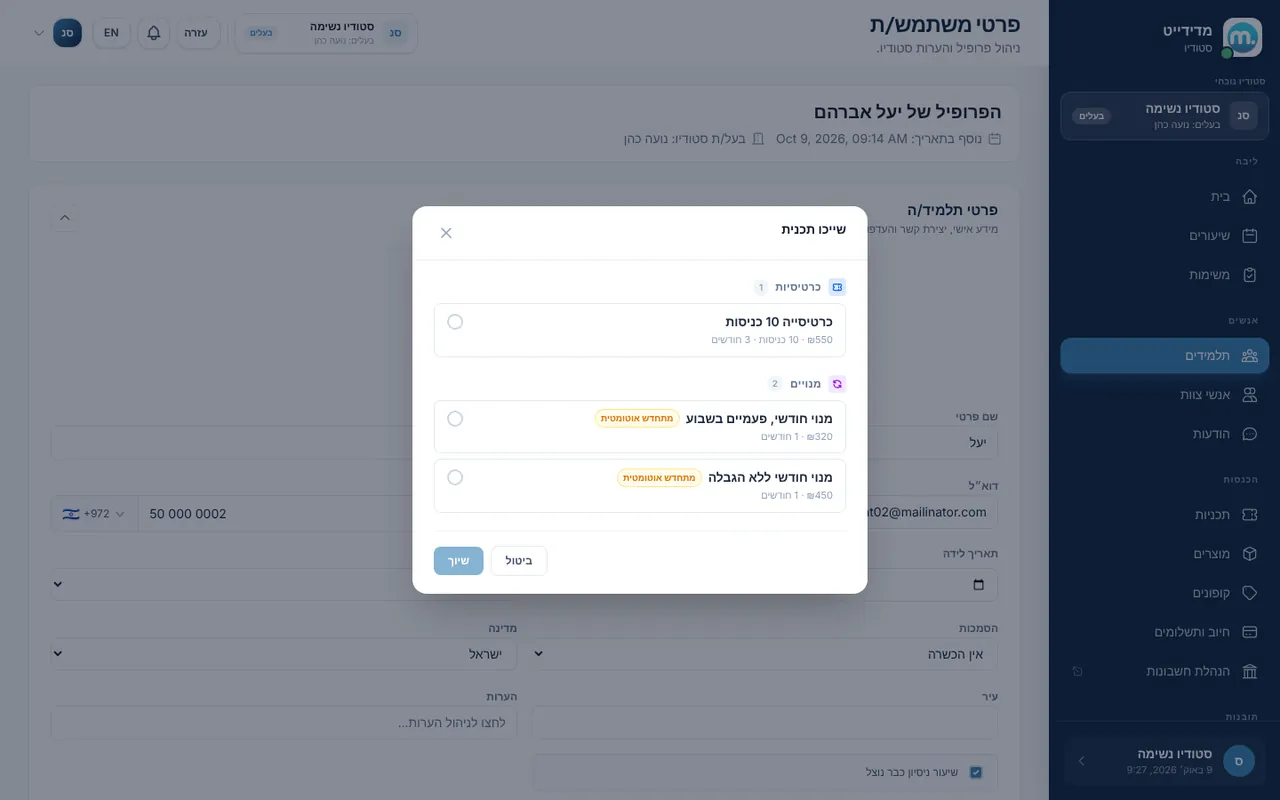
Step by step
- Assign a planOn the student's page click "Assign plan", or use "Manage students" on the "Plans" page. Punch cards and fixed-term memberships are assigned directly.
- Renewing membershipA renewing membership isn't assigned by hand. Send the student a payment request and they subscribe to monthly card billing. You can send requests to several students at once.
- FreezeMark the membership "Freeze" and billing is paused at the payment provider. A membership still waiting for its first payment can't be frozen.
- Unfreeze"Unfreeze" calculates a prorated charge for the rest of the month and offers to charge it or send a payment request. If the period is already paid, or the amount is under 5₪, there is no charge.
- Auto-punchWith "Auto-sign recurring sessions", frequent students are booked and punched a few days before class. If a punch fails, for example because entries ran out, you get an alert.
- Failed paymentsThe "Billing" page lists "Failed payments", and a "Payment failed" automation can send a reminder or create a task.
Key settings and options
- Assign plan
- Send payment request
- Freeze and unfreeze
- Force unfreeze
- Auto-sign recurring sessions
- Failed payments
Tips
- lightbulbA paid plan can't be removed before it is refunded. A plan with used entries is kept as expired, for the history.
- lightbulbThe "Plan ending" and "Plan renewing" automations help you keep students before their membership runs out.
Screen names in these guides use the "Studio" business type. For other business types the system adapts its wording, for example "patient" and "treatment" for a clinic, or "trainee" and "training" for a sports club.
Updated for the current version of the system: October 2026